1. Obtain SCIM Credentials from Pleo
- In Pleo, go to Settings
- Click Integrations and open the People management tab
- Select Microsoft Entra
- Allow access
- Copy the Tenant URL and Secret token
2. Create a non-gallery enterprise application in Microsoft Entra
- Sign in to the Microsoft Entra admin centre
- Go to Identity → Applications → Enterprise applications
- Click + New application and + Create your own application
- Name the app (example: Pleo user provisioning)
- Select Integrate any other application you don’t find in the gallery (Non-gallery)
- Click Create
3. Configure automatic user provisioning
- In the Enterprise application, open Provisioning
- Click Get started
- Set Provisioning Mode to Automatic
- In Admin Credentials, paste:
- Tenant URL (from Pleo)
- Secret token (from Pleo)
- Click Test Connection
- Click Save
4. Choose which users (or groups) should be set up
- In the Enterprise application, navigate to Overview
- Open Users and groups
- Click + Add user/group
- Select the users and/or groups you want to provision to Pleo
- Go back to Provisioning
- Under Settings, set the Provisioning Status to On
- Click Save
- The provisioning process will start
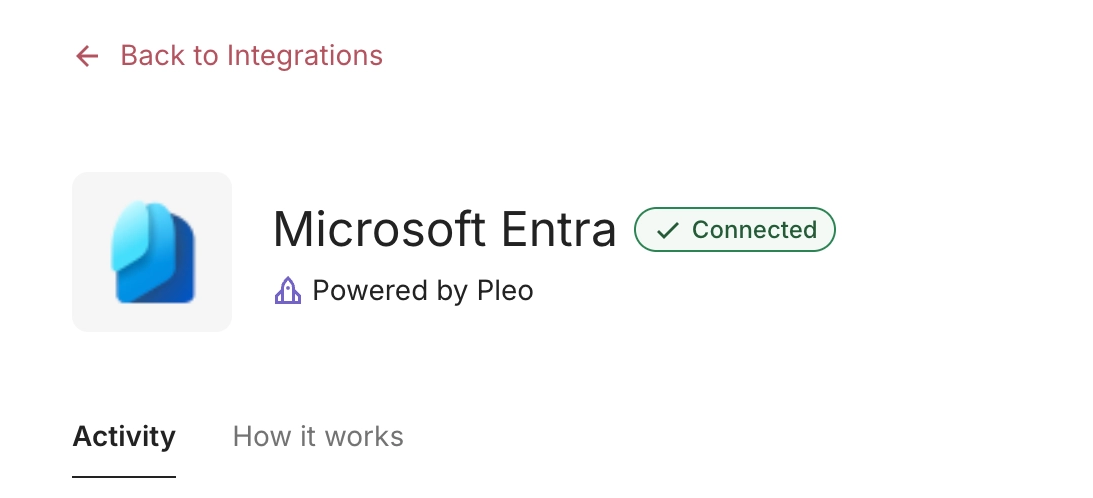
Note: Sync may take some time depending on the number of users assigned. - The integration status in Pleo will change to Connected
5. Invite the selected users in Pleo
- In Pleo, go to People
- Find the members provisioned from Microsoft Entra
- Select the users you want to activate
- Invite them
Was this article helpful?
That’s Great!
Thank you for your feedback
Sorry! We couldn't be helpful
Thank you for your feedback
Feedback sent
We appreciate your effort and will try to fix the article
