If a reviewer is going on leave (or is otherwise unavailable), admins can prevent approvals from getting stuck by temporarily assigning a replacement reviewer.
- An admin role is required to change Team, Tag, and Company reviewers, while either an admin or reviewer role is needed to add a one-off reviewer to a specific expense.
- Changes take effect immediately and apply to both expenses and invoices that match the review setup
- You can assign multiple reviewers for Team, Tag, and Company review.
- When you change reviewers for a Team, Tag, or the whole company, the changes apply to:
- Existing expenses and invoices pending approval
- Expenses and invoices submitted going forward
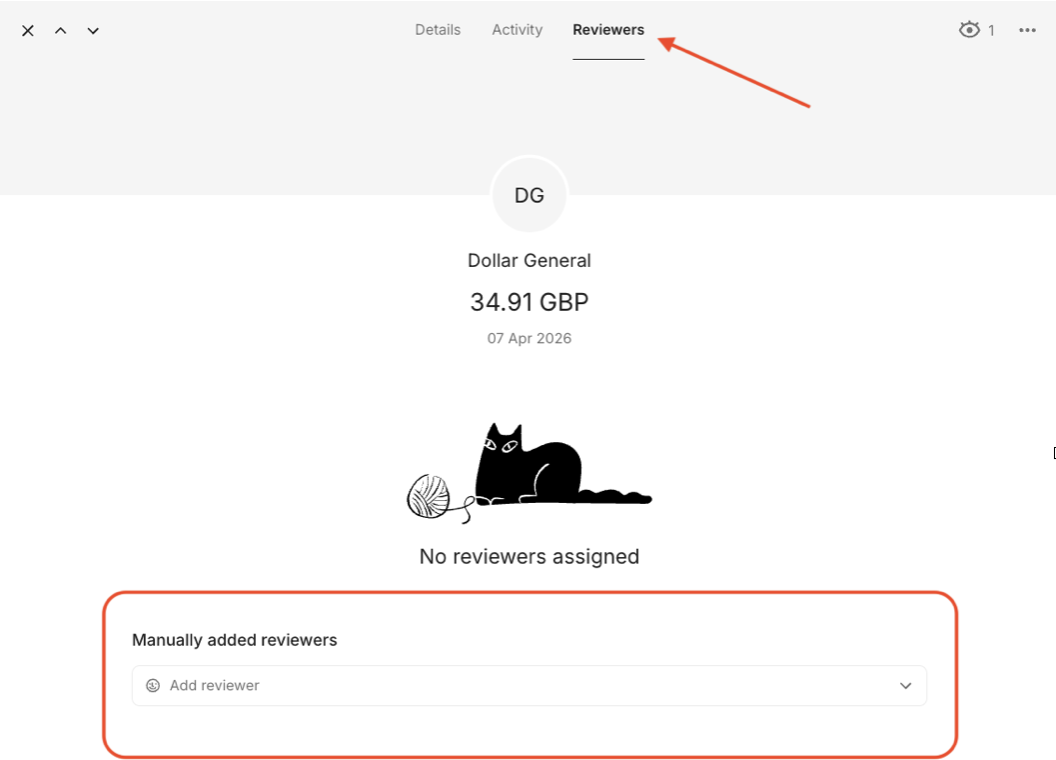
Add a one-off reviewer to a specific expense (quick workaround)
Use this when you only need coverage for a small number of expenses. Both Reviewers and Admins can change the review route per expense.
- Go to Expenses
- Open the relevant expense
- Navigate to Reviewers at the top
- Open Manually add reviewers, and choose a reviewer
- The expense is rerouted to the selected reviewer
Set a temporary reviewer for team review
Use this when a Team reviewer is going on leave.
- Go to People
- Open Teams
- Select the relevant team
- Add a replacement reviewer via Add reviewer
- Changes are saved automatically
When they return, repeat the steps above and remove the temporary reviewer from the team.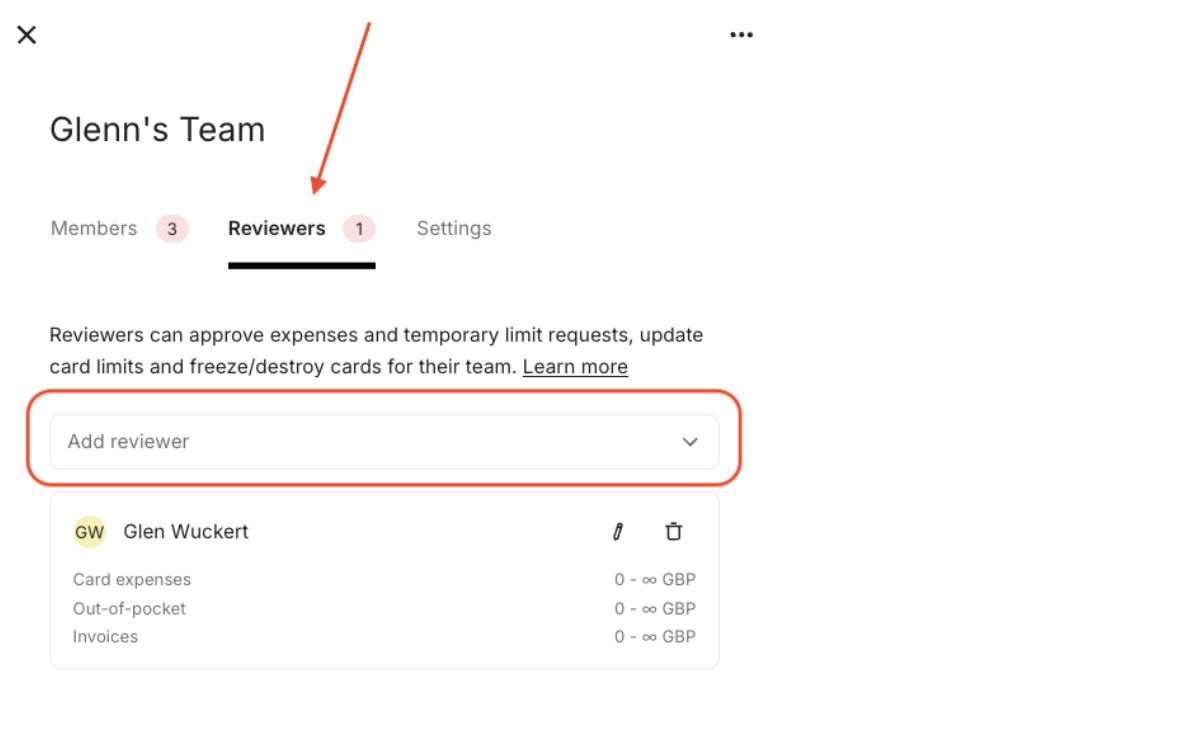
Set a temporary reviewer for tag review
Use this when approvals are routed using tags (for example: department, project, client, or location).
- Go to Settings
- Navigate to Review
- Open Tag review
- Select the relevant tag group
- Assign the temporary reviewer to the relevant tag(s)
- Click Update
When they return, repeat the steps above to reassign the original reviewer for the relevant tag(s).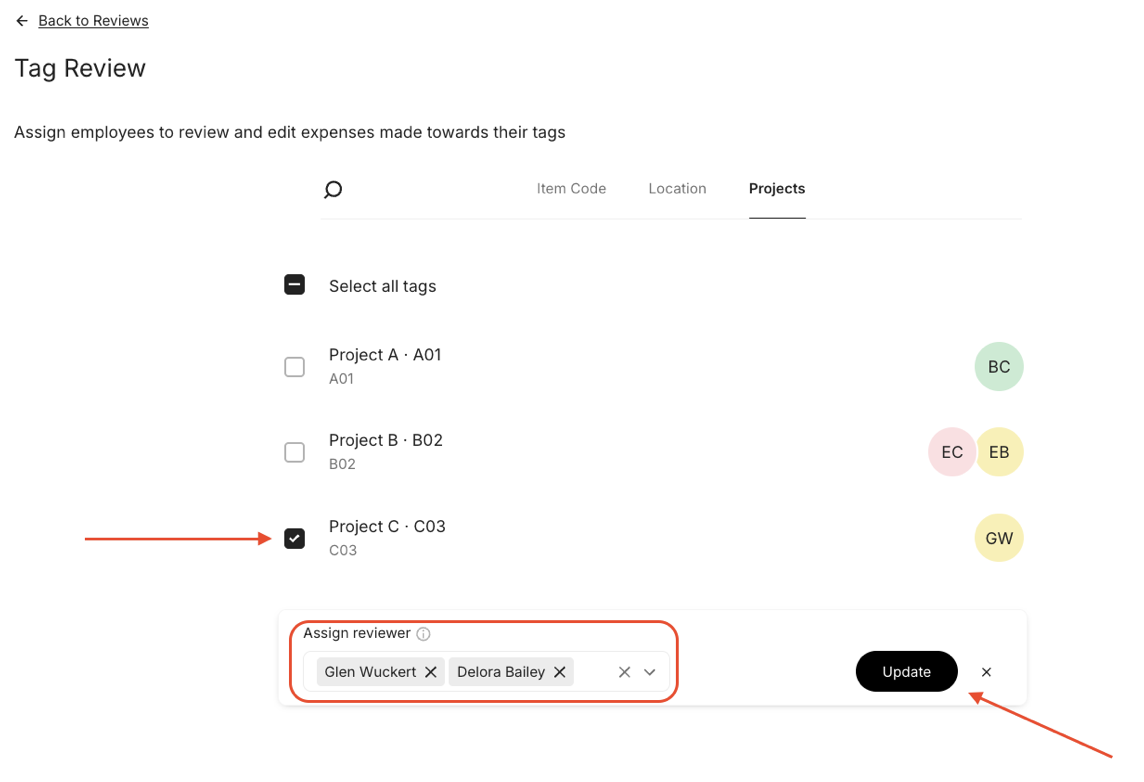
Set a temporary reviewer for company review
If you’re the only admin and company reviewer and you’re going on leave, you’ll add a second temporary Company reviewer. You first need to make this person an admin.
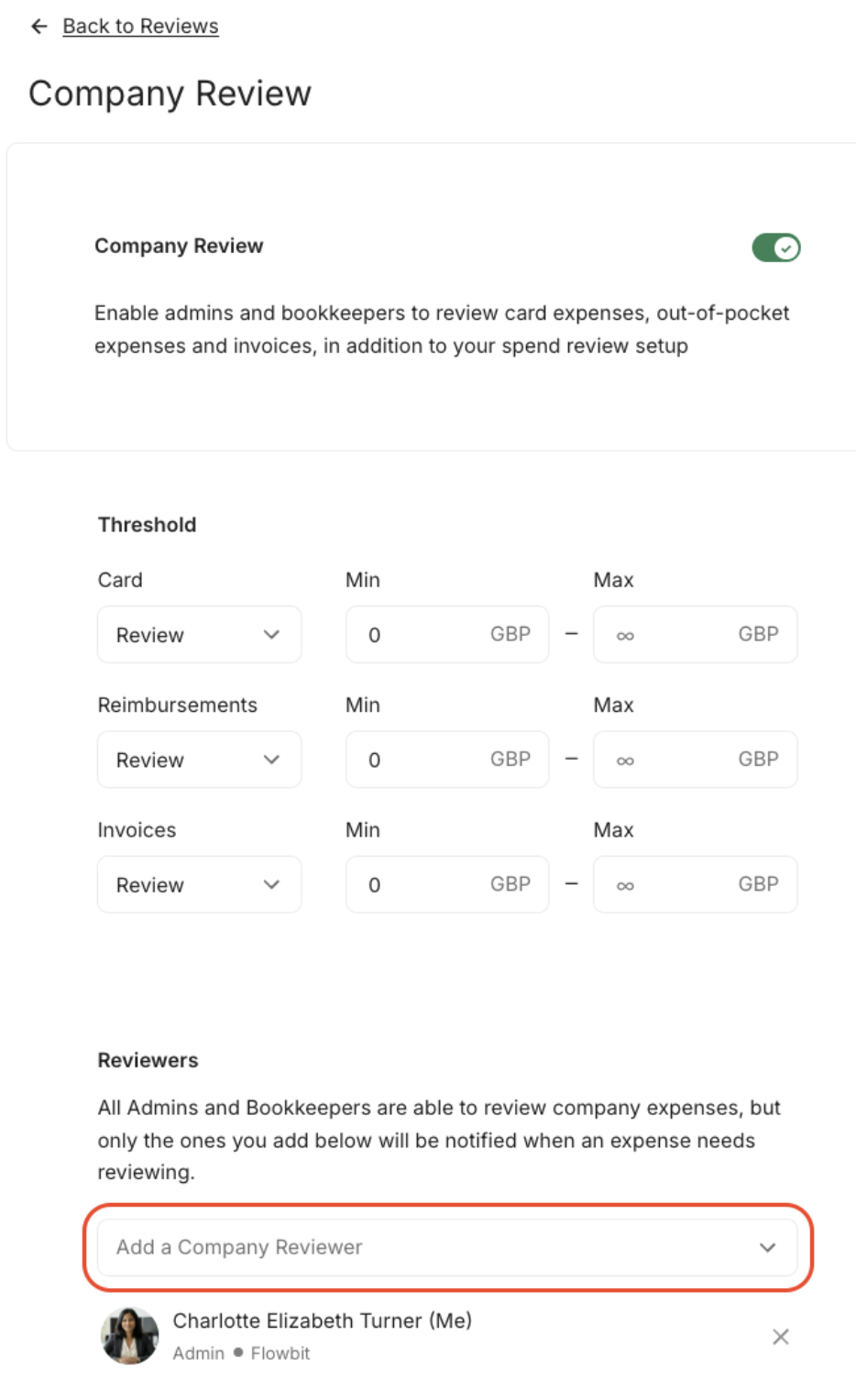
Use this when you need a fallback reviewer across the company (for example: if the main company reviewer is out).
- Go to Settings
- Navigate to Review
- Open Company review
- Add an additional admin as a Company reviewer via the drop-down
- Changes are saved automatically
When they return, repeat the steps above to remove the temporary company reviewer
If your company review is a final approval step, changing the reviewer can affect a large number of approvals. Consider covering only the necessary Team or Tag rules if you don’t need company-wide coverage
Was this article helpful?
That’s Great!
Thank you for your feedback
Sorry! We couldn't be helpful
Thank you for your feedback
Feedback sent
We appreciate your effort and will try to fix the article
