Preparation
Connection
Configuration
Export an expense
Step 1. Preparation
Activate services in DATEV
Your accountant or DATEV administrator:
- In DATEV
- Go to Verwaltung → Rechteverwaltung online → Mandanten
- Activate the following services:
- Rechnungsdatenservice 1.0
Makes it possible to connect DATEV with other apps and transfer data securely - Kassenbuch online
Allows you to manage expense records in Datev Unternehman Online
Set up accounts
Your tax consultant should provide you with the account numbers.
| Account | Description | Account type |
| Kartenausgaben- Kassenbuch | For expenses paid with Pleo cards, or directly from your Pleo balance. | Typically a cashbook. |
Privatauslagen- Kassenbuch | For money owed to employees (or by employees). | Typically a cashbook. |
| Externe Rückerstattungen / Geldtransit | For reimbursements of money owed to employees (or by employees) and fund transfer. | Typically a transition account. |
| Invoices (optional) | For invoice payments made from the Pleo Account (to be matched with vendors in DATEV). | Typically a transition account. |
Create new cash ledgers in DATEV
You’ll need to create 2 new cash ledgers for your Pleo expenses.
- Go to DATEV → Anwendungen → Kassenbuch → Kasse anlegen.
- Create a cash ledger for:
- Pleo expenses
- Out-of-pocket expenses
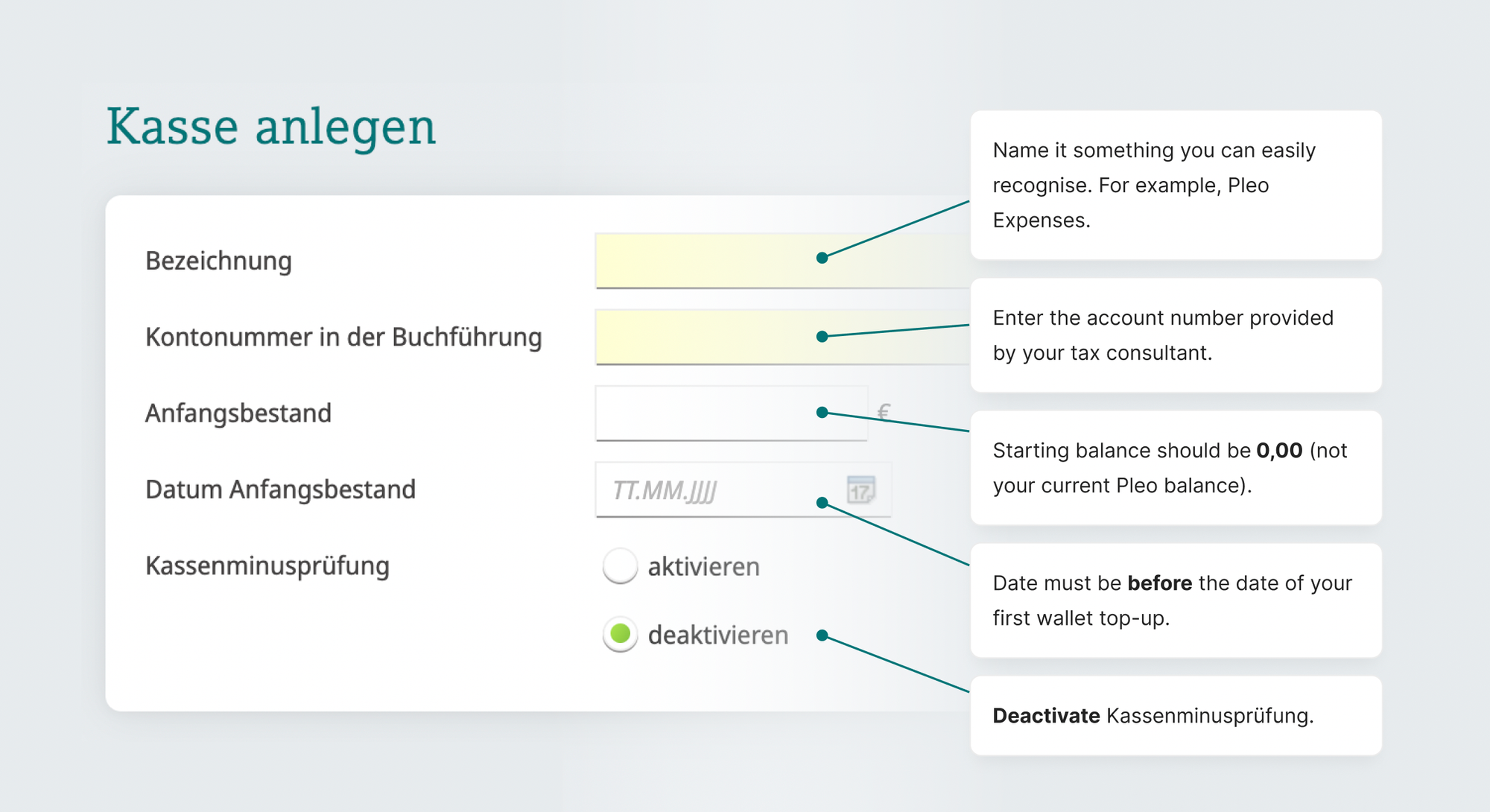
Good to know: You’ll need access to Kassenbuch Online. Ask your DATEV admin to update your permissions if necessary.
Apply settings
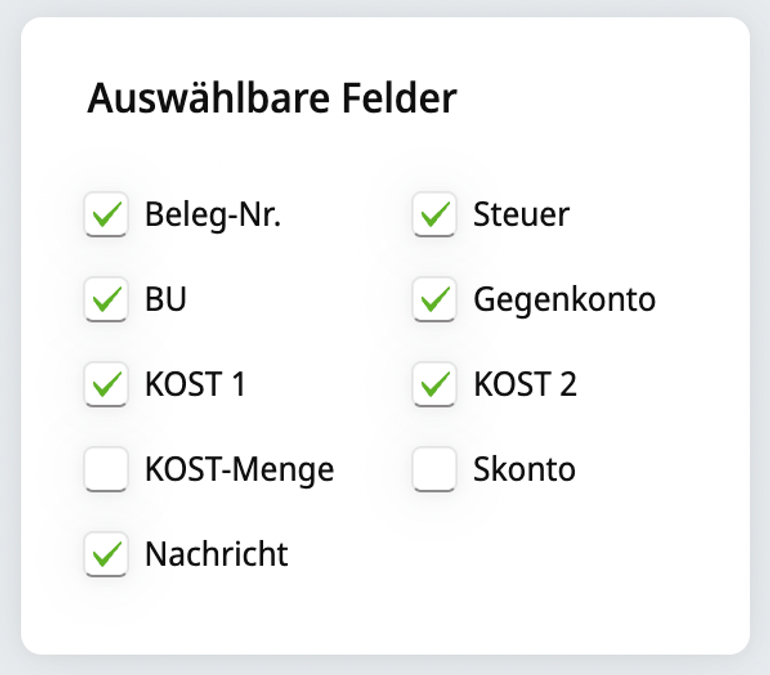
To display all your Pleo data in DATEV, you’ll need to update your settings.
- In DATEV, go to Einstellungen → Erfassungsmaske konfigurieren.
- Check the following boxes:
Step 2. Connection
- In Pleo, navigate to Settings
- Click Accounting
- Search for DATEV
- Select the DATEV Unternehmen online and click Continue
- Follow the prompts
Step 3. Configuration
1. Complete the setup page
In Pleo, go to Settings → Accounting, open your DATEV Unternehmen online integration, and complete the following fields on the setup page:
- Geldtransit account
- Enter the account used as the transit account for external reimbursements and Wallet loads
- The account must already exist in your DATEV chart of accounts. Ask your tax consultant for the correct account number if needed
- Pocket Kasse
- Select the DATEV Kassenbuch used for Pocket / out-of-pocket expenses
- If you use reimbursements, make sure the relevant Privatauslagen Kassenbuch is already available in DATEV Unternehmen online
- Custom booking text (Buchungstext)
- Select the expense information you want to appear in the booking text sent to DATEV
- Arrange the selected fields in the order in which you want them to appear
- This determines the information shown on each expense in DATEV, so you can align the booking text with your accounting conventions
2. Configure the Wallet Kasse
- In the DATEV Unternehmen online integration settings, open the Kartenausgaben-Kassenbuch tab
- Find Wallet Kasse and select the DATEV Kassenbuch used for Wallet expenses
- Select the corresponding Kassenbuch that you created in DATEV Unternehmen online during preparation
3. Configure tags (cost centres)
Tags in Pleo reflect Kostenstellen / cost centres (KOST1 and KOST2) in DATEV.
- In the Pleo, go to Settings
- Click Accounting
- Select Tags
- Click Add tag group
Please note that you can have up to three tag groups in Pleo. - Input an easily understandable name and select the tag group as either KOST1 or KOST2.
- Click Create tag group
4. Set up Categories
- In the Pleo, go to Settings
- Click Accounting
- Select Categories
- Category groups have automatically populated - edit them by clicking on the title Create categories under each category group
For example, under a "Marketing" category group, categories could be "Facebook" and "Google." - Assign a tax code to a specific category so that any future expenses under that category are automatically assigned the relevant tax percentage
Step 4. Export an expense
After setting up the integrations it's important to export an expense to see if the integration is configured correctly.
Once you've exported expenses from Pleo, open DATEV Unternehmen online and:
- Log into DUO and click on the relevant contra account (kassenbuch)
- Click on Cash movements (German: Kassenbewegungen)
- Select the accounting month
- Click on the details of the expenses
- Check through to make sure all of the Pleo expense info looks fine
- If all looks good, click on Commit & Provide (German: Festschreiben & Bereitstellen) to save the Pleo expense info in DATEV
Was this article helpful?
That’s Great!
Thank you for your feedback
Sorry! We couldn't be helpful
Thank you for your feedback
Feedback sent
We appreciate your effort and will try to fix the article
