AI Expense Reviews help you automatically identify whether expenses follow your company’s spending guidelines.
The feature uses AI to flag expenses that may be out of policy, saving you time and helping ensure spending stays on track. Where necessary, AI Expense Review asks the employee for additional context. This is then shown to reviewers and admins, who make the final decision on whether the expense should be approved or rejected.
AI Expense Review works for both card purchases and out-of-pocket expenses. It looks at the information available on an expense to generate a verdict, including:
- Expense category, for example flights, meals, or accommodation
- Amount spent
- Merchant, including type of purchase and city/country
- Receipt information, including items listed on the receipt
- Attendees
- The expense note
How to enable AI expense Reviews
To use AI Expense Review, you need:
- Spending guidelines set up for your company. AI uses these guidelines to evaluate expenses.
- Admin access in Pleo to manage your spending guidelines and settings.
The more detailed and specific your spending guidelines are, the more accurate the AI flagging will be.
AI Expense Review is enabled from Spending Guidelines settings:
- In Pleo, access Settings
- Navigate to General
- Click Pleo AI
- Toggle twitch AI expense reviews
Good to know:
- AI Expense Review works for card purchases and out-of-pocket expenses.
Understand flagging scenarios
- OK - The expense follows your company's spending guidelines. These expenses can be approved quickly, often in bulk, saving time during the review process.
- Needs attention - The expense does not follow your company's spending guidelines. These expenses are flagged for closer review and may need additional justification or approval.
- Unknown - The AI cannot determine if the expense is within policy, usually because there isn't enough information or the guideline isn't clear enough. These expenses need manual review.
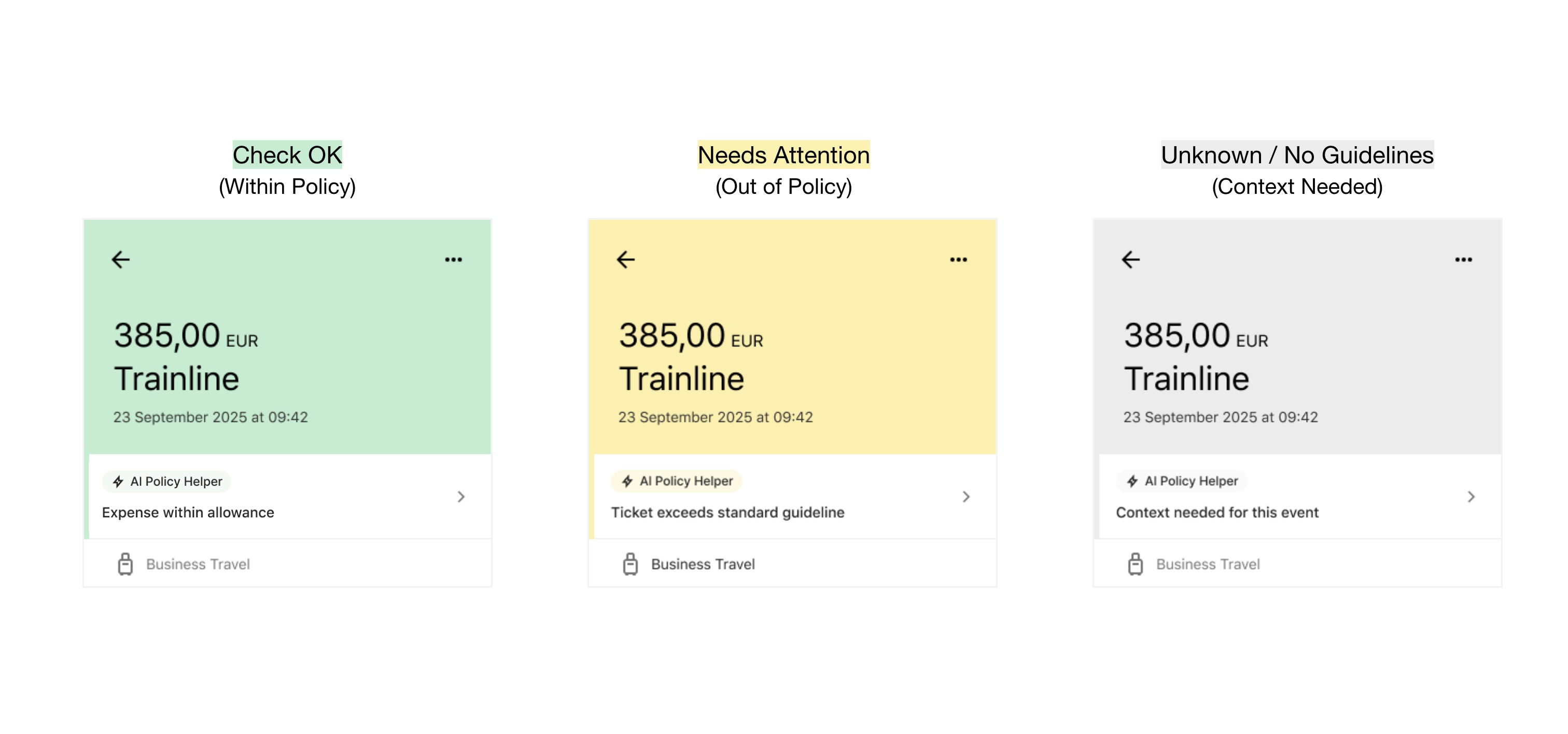
Employee’s perspective
When you submit an expense that's flagged as Needs attention or Unknown, you'll receive guidance explaining why it's been flagged. You can then:
- Add more details or notes to explain the expense
- Attach additional documentation
- Submit it for review with the context your reviewer needs
Reviewer’s perspective
AI Expense Review flags expenses, but reviewers make the final approval decision. Expenses appear in your review queue with:
- Clear indicators of the verdict status
- Guidance on what to check (e.g., "This airline ticket is business class, but your company policy only advises economy class")
- The ability to bulk approve expenses marked as OK
Admin export view
On the Export page, admins can see the AI Expense Review verdict in the column named AI Policy Helper. Over time, these verdicts can help admins understand how spending aligns with policy, spot patterns in out-of-policy spend, and identify where spending guidelines may need clarification.
Troubleshooting AI expense review
If expenses are incorrectly flagged, or if violations are missed, use the troubleshooting guide to refine your guidelines and improve accuracy.
Was this article helpful?
That’s Great!
Thank you for your feedback
Sorry! We couldn't be helpful
Thank you for your feedback
Feedback sent
We appreciate your effort and will try to fix the article
